
AWS Cloud Engineering Project — Part 2 — AWS Glue, Lambda, Kinesis, Redshift, Athena, QuickSight, S3, EC2, Spark

Repository
You may see the part 1 (Data ingestion) below:
Overview
In the previous part, we streamed data into Amazon Kinesis and uploaded the resulting data to the S3 bucket. In this part, we are going to create a Lambda function first. This function will be triggered by the S3 object upload. Once triggered, it will convert the data to parquet and upload the data to another S3 bucket.
We are going to create a Glue workflow which will include a Glue Crawler, a Glue ETL Job, and triggers. We are going to run this workflow once Lambda uploads the parquet file to the S3 bucket (either on schedule or manually, depending on the use case). The crawler will create a new Glue table and the ETL job will clean the dirty data. In the end, it will upload the resulting data to a different S3 bucket and will create a Glue table accordingly.
Amazon S3 Bucket
The first thing we have to do is to create an S3 bucket. We are going to use this bucket for the Lambda function to upload the resulting parquet data. From the S3 dashboard -> Create bucket:

We can leave all other parameters as default. In the end, we can click on Create bucket (aws-glue-dirty-books-parquet-dogukan-ulu for this project).
Lambda Function
We are going to create the Lambda function first. The best and most stable way of creating a Lambda function is using a Docker container image. In the below article, you may see the steps for creating the Lambda function as a Docker container.
How to Create Amazon Lambda Function with the Container Image (Dockerfile)
We will use this Dockerfile and requirements file for this project.
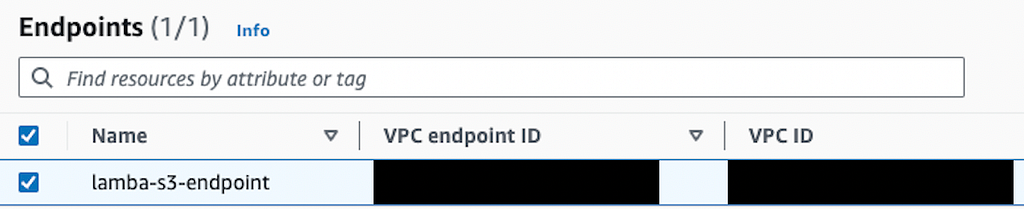
One of the significant points for the Lambda function is creating an endpoint for Amazon S3. You can check the below article for how to create a VPC and create an S3 endpoint. You may either create a dedicated new VPC or use the default VPC. We have to add the endpoint for each. I explained the process in detail below.
Establishing a VPC for Amazon S3, Lambda, RDS and EC2
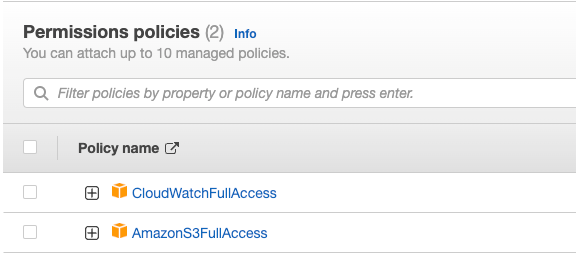
We should also have a proper IAM role that contains necessary S3 and CloudWatch permissions (AmazonS3FullAccess and CloudWatchFullAccess for example).
The other thing is having a certain security group. That doesn’t matter too much since we won’t need additional inbound rules.
To conclude the preparation part, we should have the following ones ready:
- IAM role with necessary S3 and CloudWatch permissions (AmazonS3FullAccess and CloudWatchFullAccess)
- The VPC with an S3 endpoint
- Security group dedicated to our Lambda function
After having all these ready, we can now walk through the Lambda function itself. We are going to create a class to obtain the objects coming from the source S3 bucket.
class S3Loader:
    def __init__(self):
        self.s3 = boto3.client('s3')

    def load_df_from_s3(self, bucket_name, key):
        """
        Read JSON from an S3 bucket & load into a pandas dataframe
        """
        print("Starting S3 object retrieval process...")

        try:
            get_response = self.s3.get_object(Bucket=bucket_name, Key=key)
            print("Object retrieved from S3 bucket successfully")
        except ClientError as e:
            print(f"S3 object cannot be retrieved: {e}")
            return None

        json_data = get_response['Body'].read().decode('utf-8')

        json_data_separated = json_data.replace('}{', '},{')
        json_data_final = f"[{json_data_separated}]"
        json_objects = json.loads(json_data_final)
        df = pd.DataFrame(json_objects)
        return df
Since the JSON data will be combined by Firehose and uploaded directly to the S3 bucket, the lambda function will modify that data and create the proper JSON data out of it. In the end, it will create a pandas data frame. After getting the data, we are going to create a parquet buffer out of it.
class S3Uploader:
    def __init__(self):
        self.s3 = boto3.client('s3')
        self.target_s3_bucket = "aws-glue-dirty-books-parquet-dogukan-ulu"
        self.target_s3_key = "dirty_books_parquet/books.parquet"

    def upload(self, buffer):
        """
        Upload Parquet data from memory buffer to S3
        """
        try:
            self.s3.put_object(Body=buffer.getvalue(), Bucket=self.target_s3_bucket, Key=self.target_s3_key)
            print("Parquet file uploaded into S3 successfully")
        except Exception as e:
            print(f"Error occured while uploading parquet into S3: {e}")
We also defined the target S3 bucket with prefix and key. So, our parquet data will be uploaded to s3://aws-glue-dirty-books-parquet-dogukan-ulu/dirty_books_parquet/books.parquet.
We should create a lambda_handler function since our Dockerfile will check that method.
def lambda_handler(event, context):
    try:
        bucket = event['Records'][0]['s3']['bucket']['name']
        key = event['Records'][0]['s3']['object']['key']
        print(f"S3 bucket is obtained from the event: {bucket}")
        print(f"Object key is obtained from the event: {key}")
        s3_loader = S3Loader()
        df = s3_loader.load_df_from_s3(bucket_name=bucket, key=key)

        parquet_buffer = io.BytesIO()
        df.to_parquet(parquet_buffer, index=False)
        print("JSON has been converted into parquet")

        s3_uploader = S3Uploader()
        s3_uploader.upload(parquet_buffer)
        return {
            'statusCode': 200,
            'body': json.dumps('Parquet conversion and upload successful')
        }

    except Exception as e:
        print(f"An error occurred: {e}")
        return {
            'statusCode': 500,
            'body': json.dumps('An error occurred during processing')
        }
In this method, we get the data from the S3 event because we want this function to be triggered by the S3 object upload. You can see a sample S3 event here. Then, we created a parquet buffer and uploaded it to the target S3 bucket. Now, we have our Lambda function ready. After deploying our function to Amazon ECR following the instructions in the above article, we can use it to create our Lambda function.
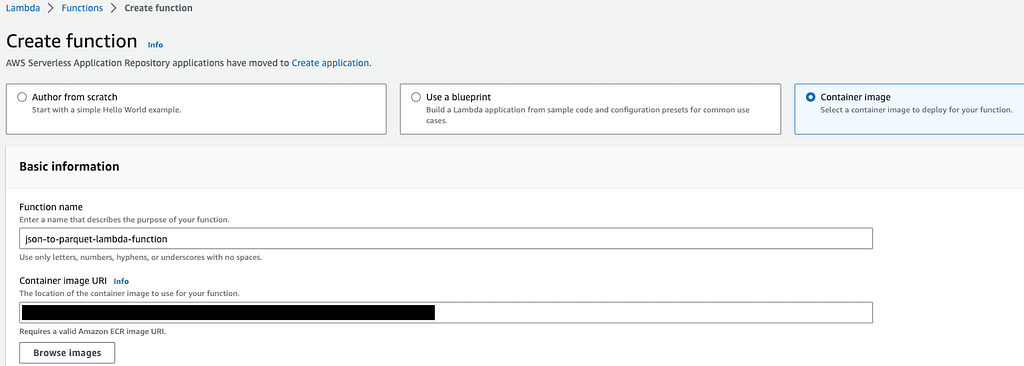
We should choose Container Image as the creation method. We can name our function as json-to-parquet-lambda-function. We should copy the URI of the container image located in the ECR and paste it under the Container image URI.
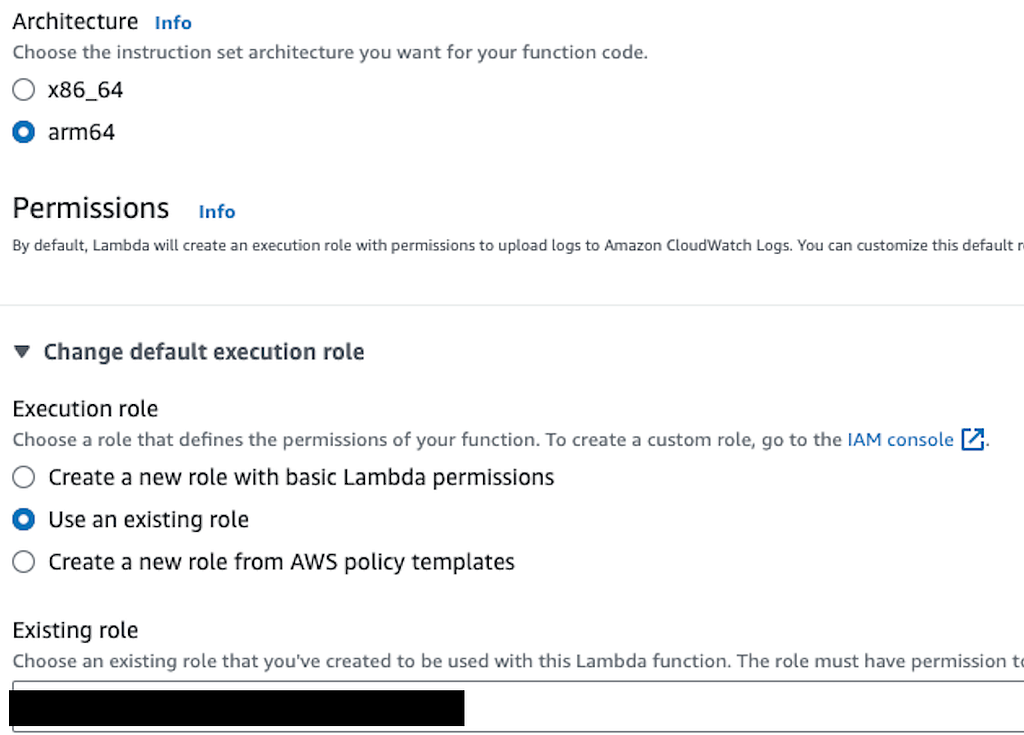
We can choose the architecture according to our local machine and select the suitable IAM role we just created. Then, we can create our Lambda function.
After it is created, we should set the timeout as 1 minute from the basic settings (We can set a lower limit but just in case). We should also modify the VPC settings. We should choose the VPC that includes the S3 endpoint we recently created. We can choose as many subnets as we want and the dedicated security group for our function.
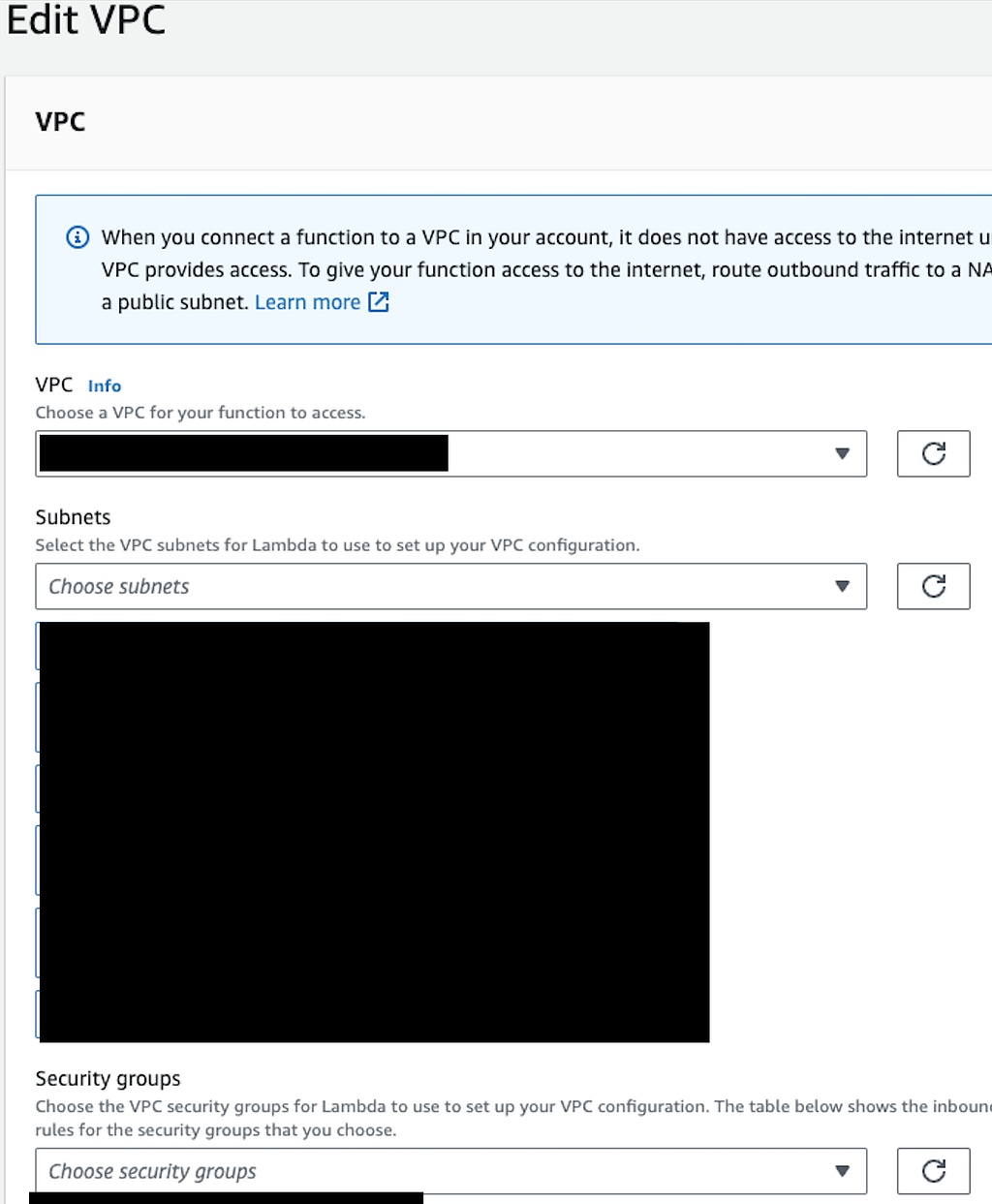
Since we don’t have any environmental variables, we don’t have to modify that part. We are going to add the S3 trigger now.
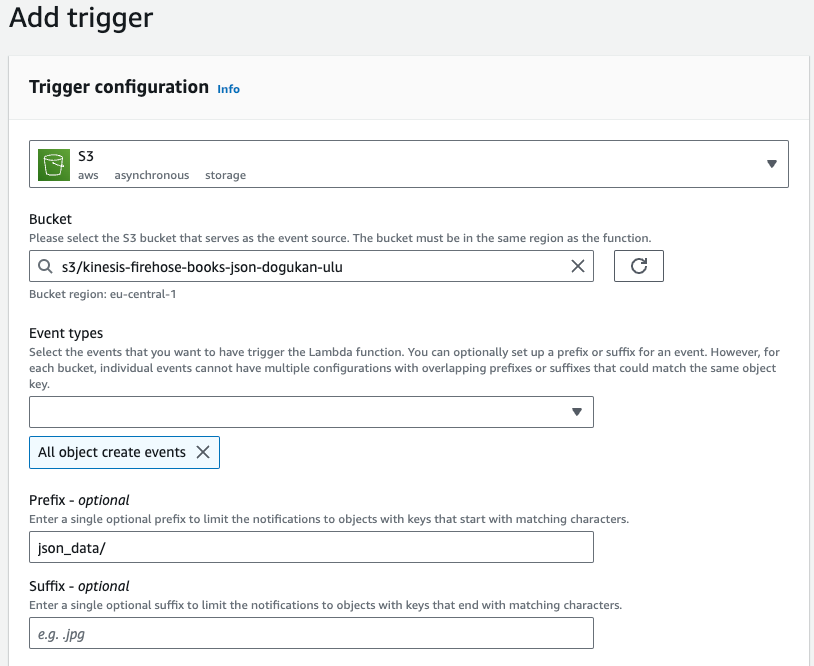
We should choose the source bucket as the one Firehose will upload the streaming data. We can define the prefix as json_data/ since the data will be uploaded to that directory.
After setting the trigger, we have our Lambda function ready now. Once triggered, we should see the logs of the script as below.

We should also see the parquet file in the S3 bucket as below.
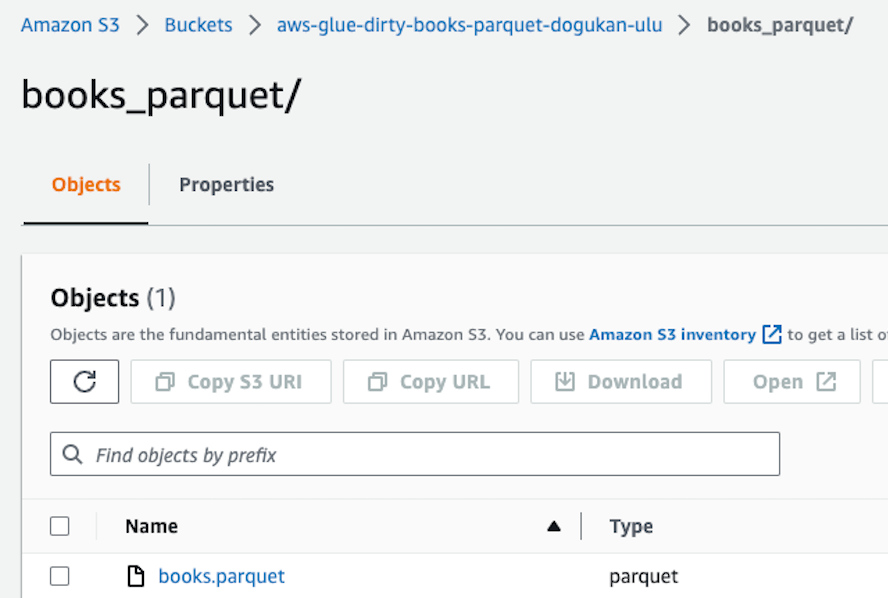
We can decide on the directory to which we want to upload our parquet file. Once uploaded, we can query our file using S3 Select.
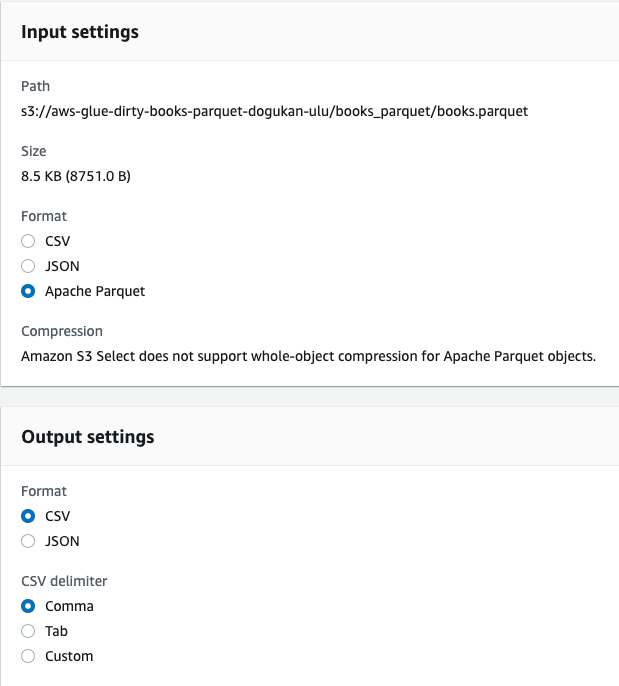
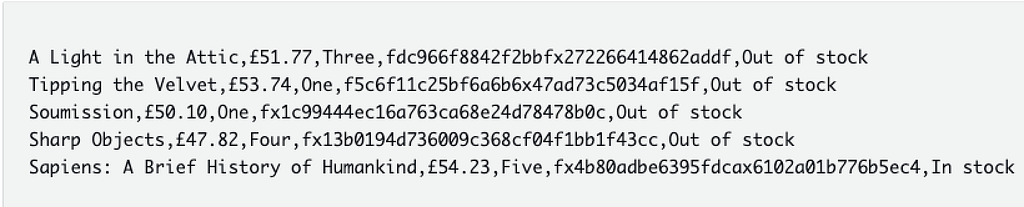
The result will be something as below. You can also see the resulting parquet file here.
AWS Glue Crawler
Our next plan is to take the dirty parquet file uploaded by the Lambda function by a Crawler and create a corresponding Glue table. We should have an IAM role that has an AmazonS3FullAccess policy. We can use it both for the crawler and the ETL job. We are going to create our Crawler first.

We can name it as books-parquet-to-glue-table.
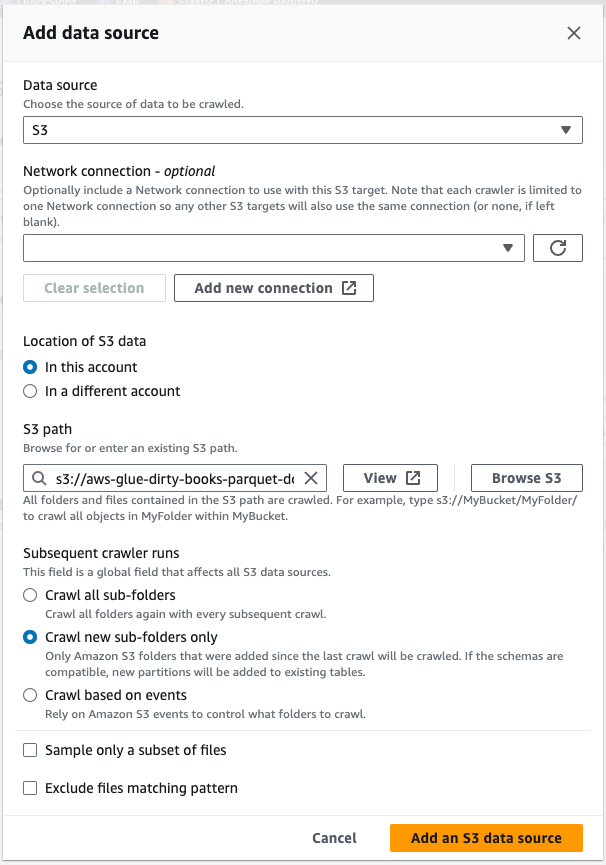
If we want our crawler to crawl all the files, we can define the location as a directory under a certain S3 bucket.
We can choose a Glue Data Catalog table as well. But if our table hasn’t been created yet, we have to choose Not yet as the first option. We are going to define our S3 location. Depending on our use case, we can choose Crawl all sub-folders or we can define it so that it crawls only the newly uploaded files under the S3 directory. If new files are uploaded into the S3 bucket every time we run our pipeline and we only want to crawl them, we can choose Crawl new sub-folders only as above.
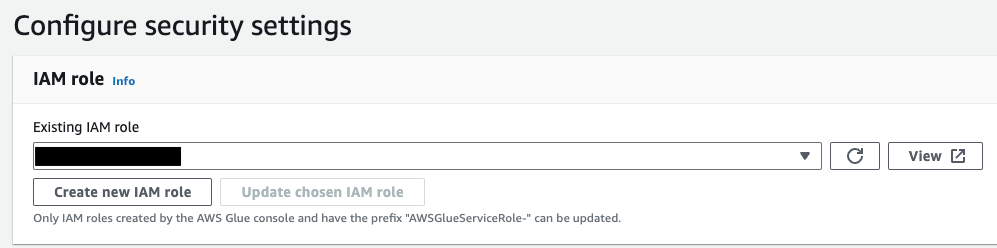
We should choose the IAM role that the Crawler will be using so that it includes necessary S3 permissions.
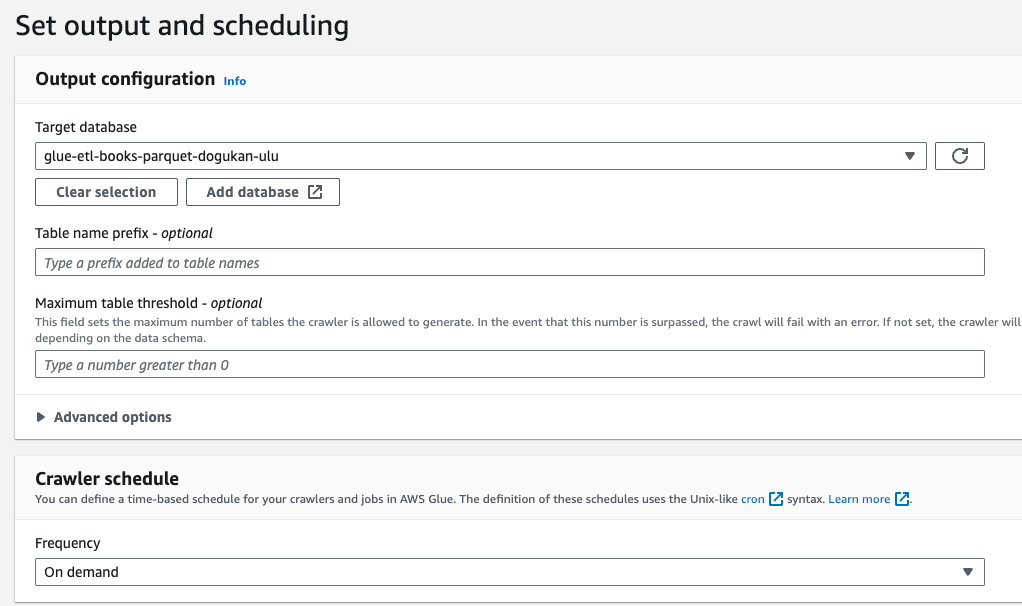
We should also choose a target database in which our resulting Glue table will be located.
We can choose a prefix for the resulting table. If we don’t choose, the name of our target table will be the same as the source S3 directory. We should choose the schedule as On demand since it will be triggered by a trigger in the workflow.
After defining all the parameters, we can create our Crawler. We have to create the Glue ETL Job since it will also be needed while creating our workflow. Our crawler will create a Glue table named dirty_books_parquet at the end.
AWS Glue ETL Job
Now, it’s time to create our Glue ETL job. It will modify the dirty parquet data uploaded by the Lambda function and create a resulting clean parquet file. It will upload that file to an S3 bucket named aws-glue-clean-books-parquet-dogukan-ulu and create a corresponding Glue table clean_parquet under the database glue-etl-books-parquet-dogukan-ulu.
First of all, we have to create our Glue ETL job using a Spark script.
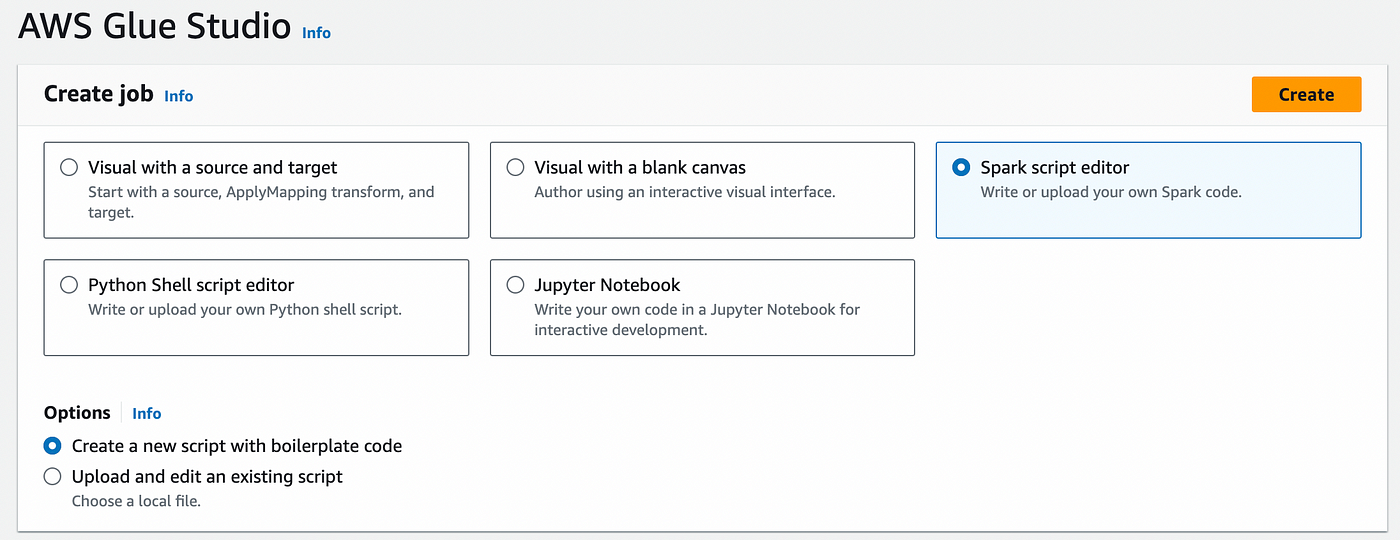
After creating the script, we can set the parameters as 2 DPU and the least powerful worker type since our workload will not be that much. We should name our job as well. Now, we can go through our ETL job script. First of all, the imports come as default in Glue ETL jobs. We should add the last two lines.
import sys
from awsglue.transforms import *
from awsglue.utils import getResolvedOptions
from pyspark.context import SparkContext
from awsglue.context import GlueContext
from awsglue.job import Job
from awsglue.dynamicframe import DynamicFrame
from pyspark.sql import functions as F
from pyspark.sql.types import IntegerType, FloatType
There are more default parameters as below that start Spark session.
args = getResolvedOptions(sys.argv, ['JOB_NAME'])
sc = SparkContext()
glueContext = GlueContext(sc)
spark = glueContext.spark_session
job = Job(glueContext)
job.init(args['JOB_NAME'], args)
We should define a dictionary so that we can convert the num_reviews column from string to integer.
num_review_mapping = {
    "One": 1, "Two": 2, "Three": 3, "Four": 4, "Five": 5
}
Since our Glue ETL job will run after the crawler creates a new Glue table dirty_books_parquet, we can read the data in that table using a Glue dynamic frame. Then, we are going to convert it to a Spark data frame as below.
def create_initial_df():
    glue_dynamic_frame_initial = glueContext.create_dynamic_frame.from_catalog(database='glue-etl-books-parquet-dogukan-ulu', table_name='dirty_books_parquet')
    df = glue_dynamic_frame_initial.toDF()

    return df
We are going to drop the pound symbol from the price column (also convert it to float) and convert the num_reviews column to an integer instead of a string.
def map_num_reviews(review):
    return num_review_mapping.get(review, review)

map_num_reviews_udf = F.udf(map_num_reviews, IntegerType())

# Define the UDF for price formatting
def format_price(price):
    price = price.replace("£", "").replace(",", "")
    return round(float(price), 2)

format_price_udf = F.udf(format_price, FloatType())
In the end, we are going to create our final data frame. We should drop the upc column since it’s unnecessary. We will also convert the availability column from string to integer depending on the column content. We will also convert our Spark data frame to a Glue dynamic frame to be able to write it to a Glue table.
df_final = df.withColumn("price", format_price_udf("price")) \
             .drop("upc") \
             .withColumn("num_reviews", map_num_reviews_udf("num_reviews")) \
             .withColumn("availability", F.when(df["availability"] == "In stock", 1).otherwise(0))

glue_dynamic_frame_final = DynamicFrame.fromDF(df_final, glueContext, "glue_etl")
Last but not least, we are going to upload our resulting clean parquet file to the S3 bucket and create a corresponding Glue table.
s3output = glueContext.getSink(
  path="s3://aws-glue-clean-books-parquet-dogukan-ulu/clean_books_parquet",
  connection_type="s3",
  updateBehavior="UPDATE_IN_DATABASE",
  partitionKeys=[],
  compression="snappy",
  enableUpdateCatalog=True,
  transformation_ctx="s3output",
)

s3output.setCatalogInfo(
  catalogDatabase="glue-etl-books-parquet-dogukan-ulu", catalogTableName="clean_books_parquet"
)
s3output.setFormat("glueparquet")
s3output.writeFrame(glue_dynamic_frame_final)
job.commit()
Our resulting parquet file should look like this clean_books_data.parquet file.
AWS Glue Workflow
Now it’s time to create the Glue workflow so that this whole process is automated. You can check the below article to have an insight into how to create a Glue workflow.
Creating AWS Glue Workflows with Glue Crawler and Glue ETL Jobs
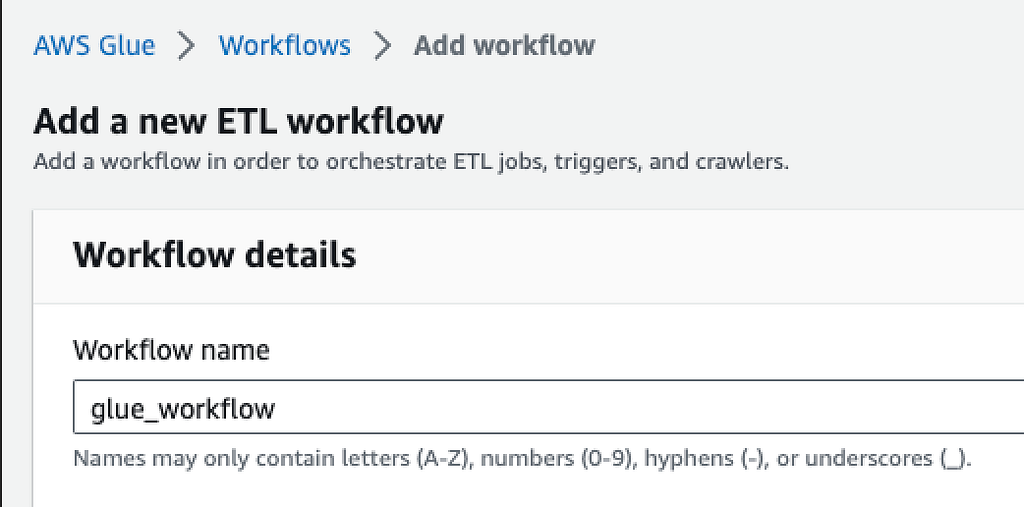
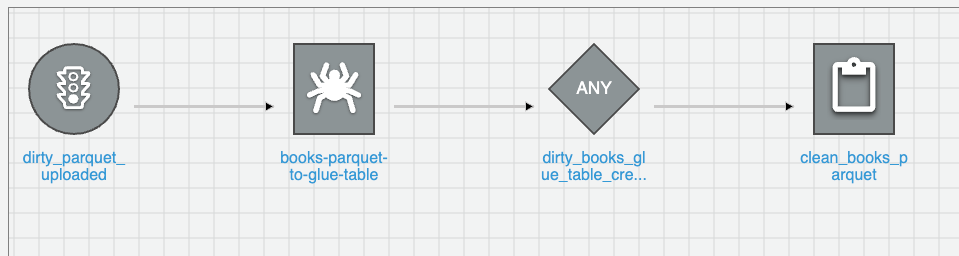
We should have the following components for our workflow:
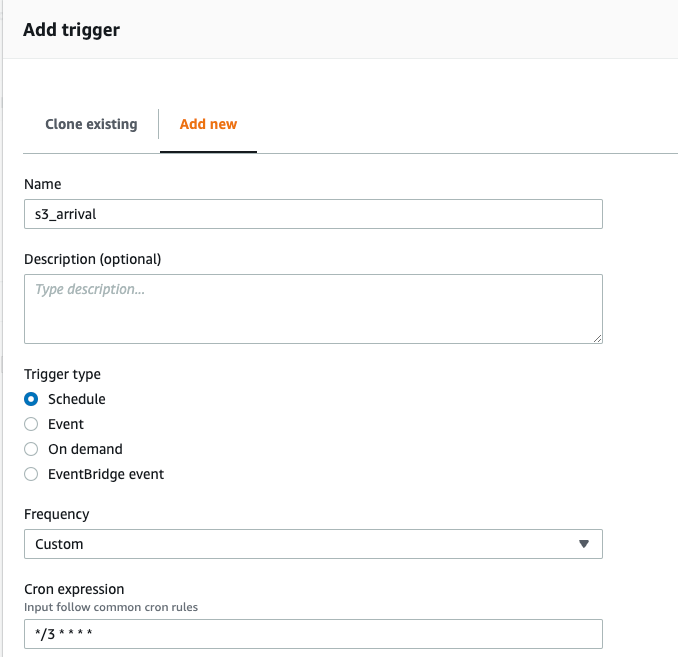
- An initial trigger. If we want to use this workflow for demo purposes, we can choose it as an on-demand trigger (We can trigger it manually). If we want it to be automatic for an automated streaming pipeline, we should set it as Schedule and decide on the cron expression as below.
- We should have our crawler as the second component.
- We should add another trigger after the crawler with ANY notation.
- In the end, we will have our Glue ETL job.
This workflow will triggered initially. Then, our crawler will create a corresponding Glue table from the dirty parquet file. Once created, our Glue ETL job will start running. It will clean the data and create a resulting clean parquet file. It will upload it to the S3 bucket and create a corresponding Glue table.



In this part of the article, we created a new Lambda function using a Docker container image. Once we upload the JSON data coming from the Firehose, it is triggered. It converts that data and uploads it as a parquet file into another S3 bucket. Once it is uploaded, our Glue workflow can start running. It includes the Glue crawler and Glue ETL job. In the end, we cleaned the parquet data, uploaded it to S3, and created a corresponding Glue table.
In the last part, we are going to check if the data is uploaded correctly. Then, we will create the corresponding tables in Redshift and Athena. In the end, we are going to create a QuickSight dashboard using this data.
If you’re looking for freelance or consultancy work on data pipelines, AI systems, or real-time platforms, reach out to me on X, or via email.
And, if this saved you time or sparked an idea, consider sponsoring me on GitHub. Thank you!
GitHub: https://github.com/dogukannulu
Email: dogukannulu@gmail.com